BZNUS User Guide
BZNUS is a desktop app for tracking customer contacts, food orders and customer-specific preferences. It is optimized for use via a Command Line Interface (CLI) while still having the benefits of a Graphical User Interface (GUI). If you can type fast, BZNUS can get your contact management and order tracking tasks done faster than traditional GUI apps.
Table of Contents
- Quick start
- Features
- Customer Commands
- Order Commands
- Other Commands
- Data Storage
- FAQ
- Known issues
- Command summary
Quick start
Ensure you have Java
17or above installed in your Computer.
Mac users: Ensure you have the precise JDK version prescribed here.Download the latest
.jarfile from here.Copy the
.jarfile to the folder you want to use as the home folder for BZNUS.Open a command terminal,
cdinto the folder you put the jar file in, and use thejava -jar bznus.jarcommand to run the application.
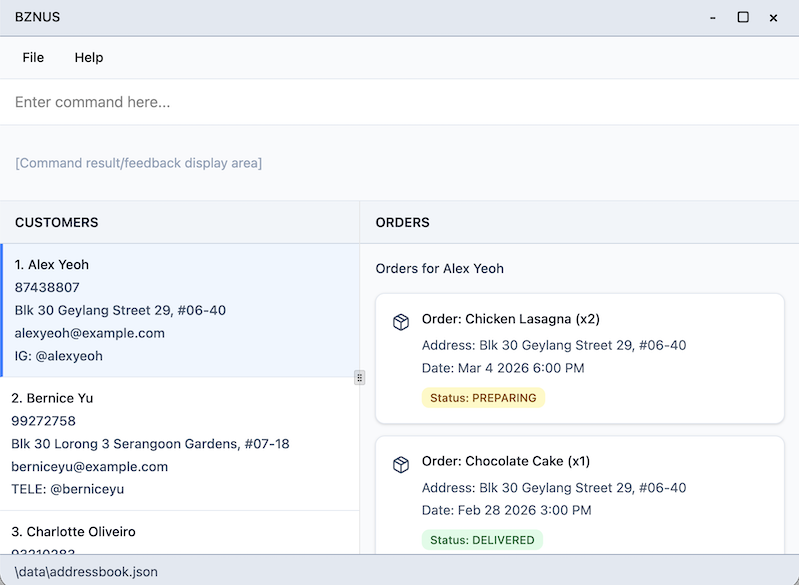
A GUI similar to the following should appear in a few seconds. Note how the app contains some sample data.
Type the command in the command box and press Enter to execute it. e.g. typing
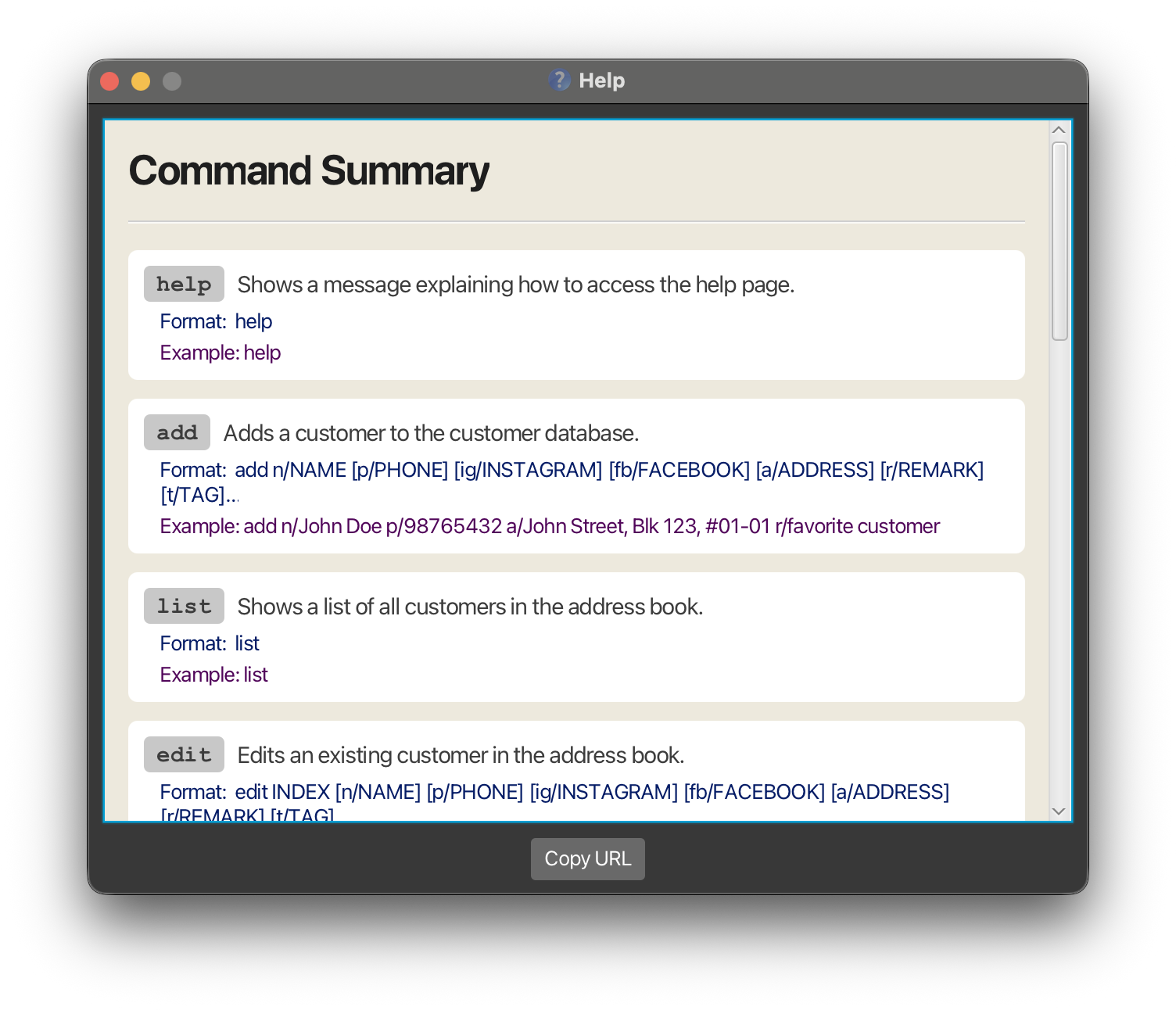
helpand pressing Enter will open the help window.
Some example commands you can try:list: Lists all customers.add n/John Doe p/98765432 a/John street, block 123, #01-01: Adds a contact namedJohn Doeto the customer database.order 1 i/Pizza q/3 at/2026-06-02 1200 a/123 Jurong West St 42, #05-01 s/PREPARING: Adds an order for 3 pizzas to the 1st customer in the current list.delete 3: Deletes the 3rd contact shown in the current list.clear: Deletes all contacts.exit: Exits the app.
Refer to the Features below for details of each command.
Features
Notes about the command format:
Words in
UPPER_CASEare the parameters to be supplied by the user.
e.g. inadd n/NAME,NAMEis a parameter which can be used asadd n/John Doe.Items in square brackets are optional.
e.g.n/NAME [t/TAG]can be used asn/John Doe t/friendor asn/John Doe.Items with
… after them can be used multiple times including zero times.
e.g.[t/TAG]…can be used ast/friend,t/friend t/familyetc.Parameters can be in any order.
e.g. if the command specifiesn/NAME p/PHONE_NUMBER,p/PHONE_NUMBER n/NAMEis also acceptable.Extraneous parameters for commands that do not take in parameters (such as
help,list,exitandclear) will be ignored.
e.g. if the command specifieshelp 123, it will be interpreted ashelp.If you are using a PDF version of this document, be careful when copying and pasting commands that span multiple lines. Space characters surrounding line-breaks may be omitted when copied over to the application.
- Solution: Type the command manually if pasting doesn't work.
Viewing help : help
Shows a message explaining how to access the help page.
Format: help
Customer Commands
Adding a customer : add
Adds a customer to the customer database.
Format: add n/NAME [p/PHONE] [ig/INSTAGRAM] [fb/FACEBOOK] [a/ADDRESS] [r/REMARK] [t/TAG]…
NAMEis mandatory. It must contain only alphanumeric characters, spaces, and apostrophes (e.g. Mary O'Connor). It cannot be blank.PHONEmust be 8 to 15 digits long and contain only numbers (e.g. 91234567 or 60123456789). No spaces, '+' sign, or other symbols are allowed.INSTAGRAMmust be 1 to 30 characters long and contain only letters, numbers, underscores, and periods. It must not end with a period or have consecutive periods. No internal whitespaces allowed. The@prefix is optional.FACEBOOKmust be 5 to 50 characters long and contain only letters, numbers, and periods. It must not have leading, trailing, or consecutive periods. No internal whitespaces allowed. The@prefix is optional.ADDRESScan be any non-blank string.REMARKcan be any non-blank string.TAGmust contain at least one letter or number, and may include spaces, underscores, and hyphens.
Note: A customer must have at least one contact method (p/PHONE, ig/INSTAGRAM, fb/FACEBOOK or a/ADDRESS). The command will fail and show an error message if all contact methods are missing.
Duplicate Handling: Customer names are unique (case-insensitive). For example, "John Doe" and "john doe" are considered the same customer, and the app will reject the duplicate entry.
Tip: If you have two customers with the same name, use descriptors to differentiate them (e.g. "John Doe (Clementi)" and "John Doe (Jurong)"). A customer can also have any number of tags (including 0).
Examples:
add n/John Doe p/98765432 ig/john a/John Street, Blk 123, #01-01 r/prefers weekend delivery t/VIP t/regularadd n/Betsy Crowe t/friend fb/betsy.crowe a/Blk 456, Bedok North r/allergic to peanutsadd n/Tech Corp SG p/67778888 ig/techcorp.sg a/Tech Tower, Level 12 r/Invoicing required
Editing a customer : edit
Edits an existing customer in the customer database.
Format: edit INDEX [n/NAME] [p/PHONE] [ig/INSTAGRAM] [fb/FACEBOOK] [a/ADDRESS] [r/REMARK] [t/TAG]…
- Edits the customer at the specified
INDEX. The index refers to the index number shown in the displayed customer list. The index must be a positive integer 1, 2, 3, … - At least one field to edit must be provided.
- Existing values will be replaced by the values you provide.
- You can clear the following single-valued fields by providing the prefix without a value:
p/clears phoneig/clears Instagramfb/clears Facebooka/clears addressr/clears remark
n/(name) cannot be empty if present. Usen/NEW_NAMEto change the name.- After the edit is applied, the customer must still have at least one contact method (
p/,ig/,fb/, ora/). Otherwise, the edit is rejected. - Tags are handled as a set:
- t/TAG [t/MORE_TAGS]...` replaces all the customer's existing tags with the tag(s) provided. I.e. the addition of tags is not cumulative.
t/clears all existing tags.
Examples:
edit 1 p/91234567 a/John Street, Blk 123, #02-02Edits the phone number and delivery address of the 1st customer to be91234567andJohn Street, Blk 123, #02-02respectively.edit 2 n/Betsy Crower t/Edits the name of the 2nd customer to beBetsy Crowerand clears all existing tags.edit 3 ig/ r/Clears Instagram and remark for the 3rd customer.edit 4 p/ fb/ ig/ a/Fails if this would remove all contact methods from the 4th customer.
Finding customers : find
Finds customers whose details match the given keywords. You can search across all fields or target a specific field using prefixes.
General Search
Format: find KEYWORD
- The search is case-insensitive. e.g.
hanswill matchHans. - All fields are searched.
- Partial matches are supported e.g.
Hanwill matchHans.
Examples:
find JohnreturnsjohnandJohn Doefind 99272758returnsBernice Yuif her contact details contains these digits
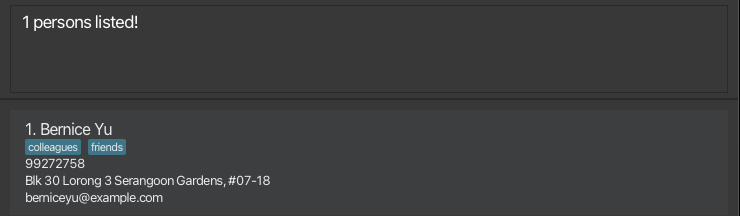
Note: All text after find is treated as a single keyword. For example, find John Doe searches for the phrase “John Doe” as one keyword, not two separate keywords.
Specific Field Search
Format: find PREFIX/KEYWORD
- The search is case-insensitive. e.g.
hanswill matchHans. - Limits the search to a single specified field.
- Allows searching with multiple prefixes.
Available Prefixes:
n/NAMEp/PHONEfb/FACEBOOKig/INSTAGRAMa/ADDRESSr/REMARKt/TAG
Examples:
find n/Alicereturns all customers whose name containsAlice.find t/regularreturns all customers whose tags containregular.find n/Bob r/non-spicyreturns all customers whose name containsBoband whose remark containsnon-spicy.
Deleting a customer : delete
Deletes the specified customer from the customer database.
Format: delete INDEX
- Deletes the customer at the specified
INDEX. - The index refers to the index number shown in the displayed customer list.
- The index must be a positive integer 1, 2, 3, …
Note: All orders associated with the deleted customer will also be deleted.
Examples:
listfollowed bydelete 2deletes the 2nd customer in the address book.find Betsyfollowed bydelete 1deletes the 1st customer in the results of thefindcommand.
Order Commands
Adding an order : order
Adds a new order for a specific customer.
Format: order INDEX i/ITEM_NAME q/QUANTITY at/DELIVERY_TIME [a/DELIVERY_ADDRESS] [s/STATUS]
- Adds an order to the customer at the specified
INDEX. - The index refers to the index number shown in the displayed customer list.
- The index must be a positive integer 1, 2, 3, …
ITEM_NAMEmust contain only alphanumeric characters and spaces, and cannot be blank.QUANTITYmust be a positive integer 1, 2, 3, ….DELIVERY_TIMEmust be inyyyy-mm-dd hhmmformat and must be a future date/time.- If
DELIVERY_ADDRESSis not provided, the customer's stored address will be used.
If the customer has no stored address, you will be prompted to enter a delivery address for the order. - If
STATUSis not provided, it defaults toPREPARING. Valid statuses:PREPARING,READY,DELIVERED,CANCELLED.
Tip: You can specify a/PICKUP for pickup orders.
Examples:
order 1 i/Pizza q/3 at/2026-06-02 1200order 2 i/Burger q/5 at/2026-07-15 1800 a/123 Jurong West St 42, #05-01order 3 i/Salad q/2 at/2026-08-10 1200 s/DELIVERED
Finding orders : find-o
Search for different orders with 4 category options: item name, delivery address, customer id, status
Format: find-o Category-Type/Category-Keywords
- Find the orders given the
Category-Keywordsfrom theCategory-Type. - The category keywords refer to the keyword used to look for orders.
- The category type refers to one of the 4 category options shown above.
- The category type must be one of i/a/c/s, which are respectively item, address, customer, status.
- Allows searching with multiple prefixes.
Examples:
find-o i/pizza- Look for orders with item keyword "pizza"find-o a/Ang Mo Kio- Look for orders with delivery address "Ang Mo Kio"find-o s/Delivered- Look for orders that are already deliveredfind-o i/burger a/Kent Ridge- Look for orders with item keyword "burger" and delivery address "Kent Ridge"
Tip: Besides using c/, you can also click on a customer entry in the list to view all orders of that customer.

Editing an order : edit-o
Updates fields of an existing order. Any field you specify replaces the previous value; other fields stay unchanged.
Format: edit-o ORDER_INDEX [i/ITEM_NAME] [q/QUANTITY] [at/DELIVERY_TIME] [a/DELIVERY_ADDRESS] [s/STATUS]
- Edits the order at the specified
ORDER_INDEX. The index refers to the order number shown in the currently displayed order list. The index must be a positive integer - At least one of
i/,q/,at/,a/, ors/must be provided. Omitting all of them is not allowed. - The order stays with the same customer; you cannot reassign an order to another customer with this command.
- Field rules are the same as when using
order(see Adding an order above):ITEM_NAMEshould contain only alphanumeric characters and spaces, and cannot be blank.QUANTITYmust be a positive integer 1, 2, 3, ….DELIVERY_TIMEmust be inyyyy-mm-dd hhmmformat and must be a future date/time.- If
DELIVERY_ADDRESSis not provided, the customer's stored address will be used. - If
STATUSis not provided, it defaults toPREPARING. Valid statuses:PREPARING,READY,DELIVERED,CANCELLED.
- After a successful edit, the full order list is shown again.
Examples:
edit-o 2 q/5— changes the quantity of the 2nd order in the list to5.edit-o 1 s/READY— marks the first pizza order in the search results as ready.edit-o 1 i/Salad at/2026-05-01 1800 a/Blk 123 Main Street— updates item, delivery time, and address for the first order in the current list.
Deleting an order : delete-o
Deletes the specific order from the order database.
Format: delete-o ORDER_INDEX
- Deletes the order at the specified
ORDER_INDEX. - The order index refers to the index number shown in the displayed order list.
- The index must be a positive integer 1, 2, 3, …
Examples:
list-ofollowed bydelete-o 3deletes the 3rd order in the results of thelist-ocommand.find-o i/pizzafollowed bydelete-o 1deletes the 1st order in the results of thefind-ocommand.
Other Commands
Data Storage
Saving the data
BZNUS data is saved in the hard disk automatically after any command that changes the data. There is no need to save manually.
Editing the data file
BZNUS data is saved automatically as a JSON file [JAR file location]/data/addressbook.json. Advanced users are welcome to update data directly by editing that data file.
Caution:
If your changes to the data file makes its format invalid, BZNUS will discard all data and start with an empty data file at the next run. Hence, it is recommended to take a backup of the file before editing it.
Furthermore, certain edits can cause BZNUS to behave in unexpected ways (e.g. if a value entered is outside the acceptable range). Therefore, edit the data file only if you are confident that you can update it correctly.
Archiving data files [coming in v2.0]
Details coming soon ...
FAQ
Q: How do I transfer my data to another computer?
A:
- Install BZNUS on the new computer, run it once, then close the app.
- On your old computer, open the folder containing
bznus.jar, then go todata/addressbook.json. - Copy
addressbook.jsonto the same location on the new computer ([JAR file location]/data/) and replace the existing data file. - Start BZNUS again. Your customers and orders should appear.
Known issues
- When using multiple screens, if you move the application to a secondary screen, and later switch to using only the primary screen, the GUI will open off-screen. The remedy is to delete the
preferences.jsonfile created by the application before running the application again. - If you minimize the Help Window and then run the
helpcommand (or use theHelpmenu, or the keyboard shortcutF1) again, the original Help Window will remain minimized, and no new Help Window will appear. The remedy is to manually restore the minimized Help Window.
Command summary
Customer Commands
| Action | Format, Examples |
|---|---|
| Add | add n/NAME [p/PHONE_NUMBER] [fb/FACEBOOK] [ig/INSTAGRAM] [a/ADDRESS] [r/REMARK] [t/TAG]… e.g. add n/James Ho p/99996666 fb/james.Ho ig/james_Ho a/123, Clementi Rd, 1234665 r/extra spicy, no onion t/friend t/regular |
| Edit | edit INDEX [n/NAME] [p/PHONE_NUMBER] [fb/FACEBOOK] [ig/INSTAGRAM] [a/ADDRESS] [r/REMARK] [t/TAG]… e.g. edit 2 n/James Lee ig/jamesLee |
| Find | find KEYWORD [MORE_KEYWORDS] e.g. find James Jake Or find PREFIX/KEYWORD e.g. find fb/james or find ig/james_ho |
| List | list |
| Delete | delete INDEX e.g. delete 3 |
Order Commands
| Action | Format, Examples |
|---|---|
| Add Order | order INDEX i/ITEM_NAME q/QUANTITY at/DELIVERY_TIME [a/DELIVERY_ADDRESS] [s/STATUS] e.g. order 3 i/Pizza q/3 at/2026-04-02 1200 a/123 Jurong West St 42, #05-01 s/PREPARING |
| Find Order | find-o Category-Type/Category-Keywords e.g. find-o i/pizza |
| Edit Order | edit-o ORDER_INDEX [i/ITEM_NAME] [q/QUANTITY] [at/DATE] [a/DELIVERY_ADDRESS] [s/STATUS] e.g. edit-o 2 q/5 s/READY |
| List Orders | list-o |
| Delete Order | delete-o ORDER_INDEX e.g. delete-o 1 |
Other Commands
| Action | Format, Examples |
|---|---|
| Help | help |
| Clear | clear |
| Exit | exit |